AI Integration: Build a Generator with Cursor
Goals:
- Configure the
generator-sdkMCP in Cursor - Install the
creating-generatorsskill - Ask the AI to generate a standard generator in natural language
This page keeps only the shortest path: configure MCP, install the skill, and then ask the AI to build the generator directly.
If you need the default rules, old-generator refactor guidance, self-check prompts, release notes, or common mistakes, continue with AI Integration Notes.
Fastest Path: Let the AI Handle the Entire Setup
If you want to get started as quickly as possible, complete Step 1 (MCP config + Cursor restart) and then send this single message to let the AI finish the rest in one go:
Please complete the generator-sdk AI integration setup for me:
1. If the marketplace source has not been added yet, add xtool-official/xtool-skills
2. Install the creating-generators skill
3. After installation, call the generator-sdk MCP once and tell me the current version and list all recognized tools
4. Tell me whether the integration succeeded
The AI will handle the installation on its own — you do not need to watch. If something requires your action, the AI will tell you explicitly. Once you receive the AI's confirmation that the setup is complete, you can start asking for generators right away.
If something goes wrong, or you want to understand each step in detail, continue with the three-step walkthrough below.
Three-Step Quick Start
Step 1: Configure MCP
Add the following to your Cursor MCP Servers configuration:
{
  "mcpServers": {
    "generator-sdk": {
      "command": "npx",
      "args": [
        "-y",
        "@atomm-developer/generator-sdk-mcp@latest"
      ]
    }
  }
}
Save and restart Cursor.
This lets the AI query generator-sdk documentation, the runtime contract, starters, and generator-related tools directly instead of guessing from memory.
Step 2: Install the creating-generators Skill
The easiest option is to let the AI install it for you. You do not need to watch — the AI will complete the installation and report the result. If anything requires your action, it will prompt you.
Please help me install the creating-generators skill.
1. If the marketplace source has not been added yet, add:
   xtool-official/xtool-skills
2. Then install:
   - creating-generators
3. Tell me the result after installation.
Click to expand manual installation options
The public skills repository is xtool-official/xtool-skills. If you want to inspect the install instructions, review creating-generators, or install the skill manually, use that README as the source of truth.
If you prefer to install it manually, run:
claude plugin marketplace add xtool-official/xtool-skills
claude plugin install creating-generators@xtool-skills
If you are installing it manually in Cursor, the README also documents 3 common options:
- Import it through Cursor's GitHub remote rule UI:
- Open
Settings -> Rules -> Add Rule -> Remote Rule (Github) - Use the repository URL:
https://github.com/xtool-official/xtool-skills.git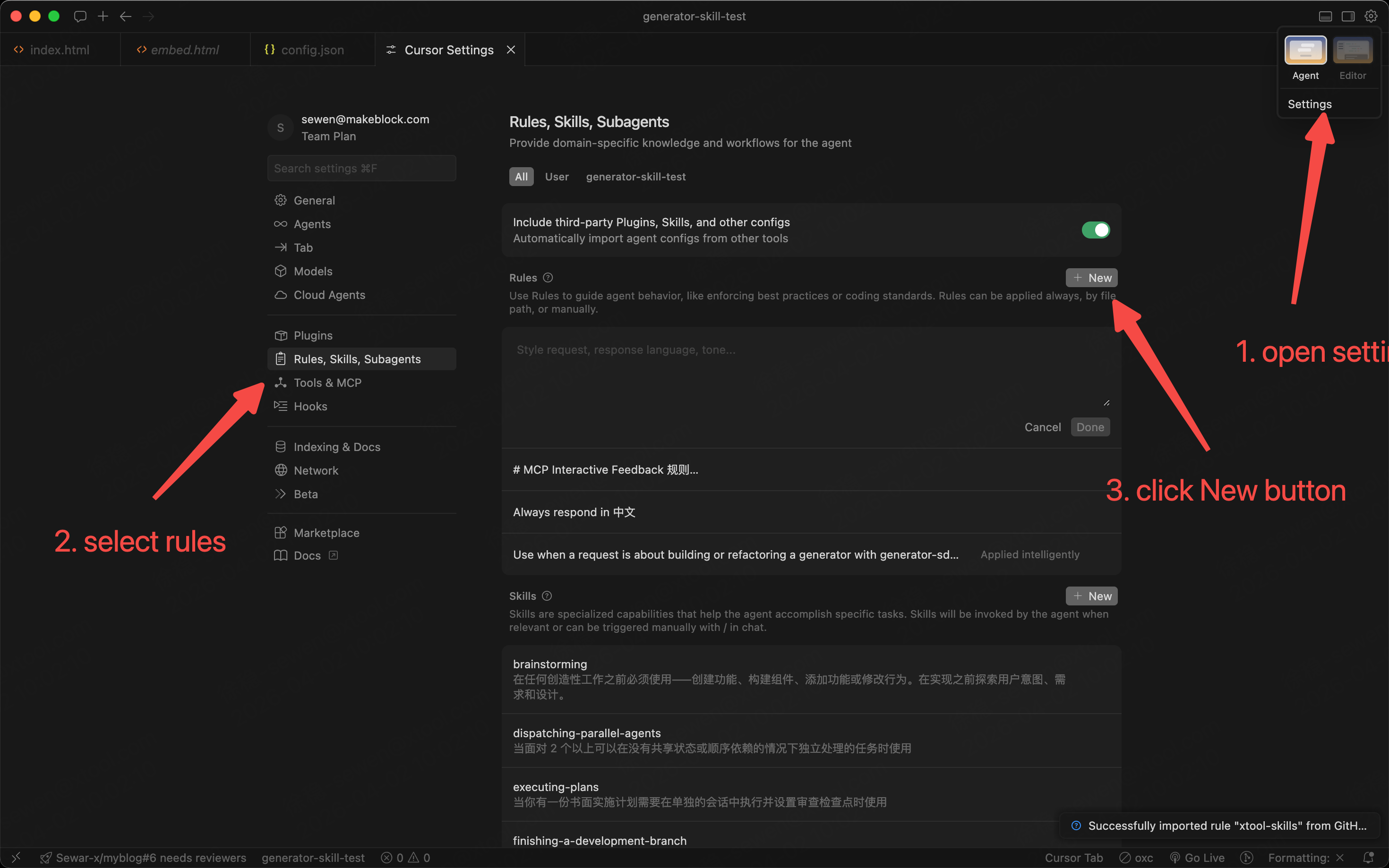
- Install into the current project:
mkdir -p .cursor/skills/creating-generators
cp skills/creating-generators/SKILL.md .cursor/skills/creating-generators/SKILL.md
cp skills/creating-generators/reference.md .cursor/skills/creating-generators/reference.md- Install globally for all local projects:
mkdir -p ~/.cursor/skills/creating-generators
cp skills/creating-generators/SKILL.md ~/.cursor/skills/creating-generators/SKILL.md
cp skills/creating-generators/reference.md ~/.cursor/skills/creating-generators/reference.md
If you need to update the skill later, rerun the same installation method you originally used.
If Cursor does not pick up the skill immediately, work through the table below in order:
| Symptom | Cause | Action |
|---|---|---|
| AI does not follow the standard generator workflow | skill not yet loaded in the current session | Start a new Agent chat |
| New chat still has no effect | Cursor has not reloaded the skill files | Restart Cursor |
| AI answers MCP questions from memory rather than querying docs | MCP is not running | Check the MCP status indicator in the Cursor status bar — generator-sdk should be green |
| MCP shows green but AI still gives wrong answers | AI is not actually calling the MCP | Send "Please call the generator-sdk MCP and list the available tools" to confirm the AI is querying the docs and not guessing |
Once installed, the AI will prefer the standard generator workflow instead of treating the task as generic page generation.
Verify the Integration
Before sending your first real request, send this verification message to confirm both MCP and the skill are ready:
Please verify the generator-sdk integration status:
1. Call the generator-sdk MCP once and tell me the current version number
2. Tell me whether you have recognized the creating-generators skill
3. List the names of all available MCP tools you can see
A version number and a tool list in the response means the MCP is working for real. A mention of the creating-generators skill means the skill is loaded. Once both are confirmed, you are ready to start building generators.
Step 3: Ask for the Generator Directly
After MCP and the skill are ready, a new generator project can start with a prompt like this:
Help me develop a new pendant generator.
Please follow the default standard path from creating-generators.

Pendant style:
- minimalist rectangular tag
- the hole is inside the rectangle
- only the word generator appears inside
For this kind of task, the recommended workflow is to focus on what generator you want, not on listing every integration detail up front.
Existing project already uses generator-workbench? Ask the AI to upgrade it like this
If the project already uses generator-workbench and you want the AI to upgrade that integration, the simplest approach is not to guess whether host/runtime changes are needed yourself. Instead, ask the AI to run a workbench upgrade audit first.
You can start with:
This is an old generator project that already uses generator-workbench. Please help me upgrade generator-workbench in this project.

Requirements:
1. Follow the creating-generators workbench upgrade audit flow first
2. Read the CDN upgrade manifest first:
   https://static-res.atomm.com/scripts/js/generator-sdk/generator-workbench/upgrade-manifest.json
3. If the CDN manifest cannot be read, fall back to MCP documentation
4. Classify the upgrade into auto-adopted, host-action-required, and runtime-action-required
5. Output a project-specific upgrade checklist before changing code

Project path:
<your project path>

Current goal or issue:
<for example: enable cloud/history, wire atomm-pro modal flows, fix template switching so it triggers cloud save>
If you already know the current and target versions, include the release window too:
This project is currently using generator-workbench 0.1.5. Please help me upgrade it to 0.1.6.
Run the workbench upgrade audit first, then implement the required changes.
Why this works better:
- the AI separates shell-only gains from host/runtime work that still must be done in the generator
- it checks the key integration points first, such as
workbench.config,workbench-host.js, runtime adapters, andruntime-cloud-save-request - it outputs the checklist before implementation, which reduces the chance of changing shell internals blindly
Updates and Maintenance
After the initial setup, day-to-day maintenance is straightforward:
| Situation | Action |
|---|---|
| MCP has a new version | Nothing to do — npx -y ... @latest always pulls the latest version on each run |
| Skill has a new version | Rerun the original install command, or ask the AI to run claude plugin install --update creating-generators |
| MCP disappears after a Cursor upgrade | Check that .cursor/mcp.json still contains the configuration, then restart Cursor |
| AI suddenly forgets the standard generator workflow | Start a new chat; if it still has no effect, restart Cursor; as a last check, confirm the skill files are still present |
| Want to confirm the current MCP version and available tools | Send "Please call the generator-sdk MCP and list the available tools" — the AI will query and return live results |
Continue Reading
If you have finished these three steps, or want more detail on:
- the default rules and AI behavior
- how to refactor an existing generator
- how to ask the AI for a self-check
- CMS / upload steps for release
- fuller prompt templates and common mistakes
see AI Integration Notes.